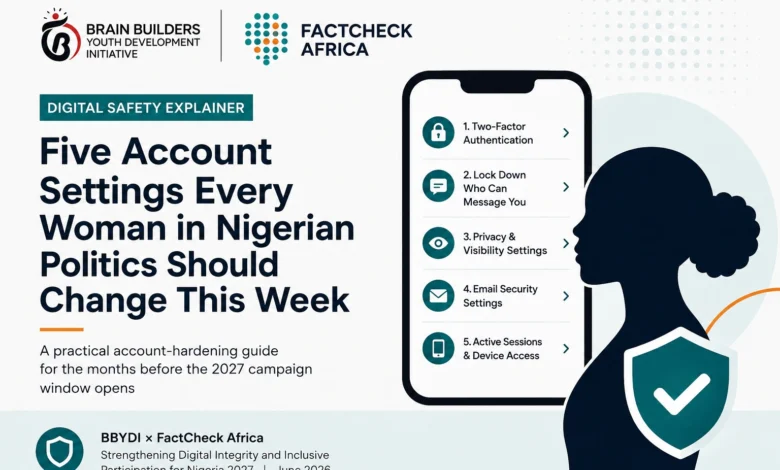
DIGITAL SAFETY EXPLAINER | Issue 02 | June 2026
BY: Olasupo Abideen
A practical account-hardening guide for the months before the 2027 campaign window opens
BBYDI × FactCheck Africa | Strengthening Digital Integrity and Inclusive Participation for Nigeria 2027 | June 2026
Last month we mapped the landscape. This month we start the practical work.
If you missed the first article in this series, the short version is this: women in Nigerian politics face a digital threat surface that has changed materially since 2023. Generative AI has made fabricated content cheap to produce; paid-influencer networks have made it easy to amplify; and once “AI content” exists as a public category, every authentic piece of evidence — including your own testimony about what was done to you — becomes contestable. The cumulative effect is a quiet but powerful deterrent to women entering and remaining in public political life.
Account hardening is the single highest-return action you can take in the months between now and the November 2026 peak campaign window. It does not require technical expertise. It does not require expensive software. It takes about ninety minutes if you do it in one session, and it is the foundation that every other defence sits on top of.
This article walks through the five settings that matter most. Work through them in order. If you cannot finish in one session, start with Setting 1 and 2 — those alone close roughly eighty percent of the most common attack pathways.
| What this article covers, and what it does not This is about your accounts: who can log in as you, who can see what you post, and who can reach you. It is not about the content of your messaging, the platforms you use, or your campaign strategy. Those come in later articles. Setting these five things this month means that when the harder battles arrive — and they will arrive — your accounts are not the weak link. |
Setting 1. Turn on two-factor authentication — and not the SMS kind
Two-factor authentication (2FA) means that even if someone steals your password, they still cannot log in to your account without a second piece of evidence — usually a code from an app on your phone. It is the single most consequential setting on this list.
Here is what matters about the choice of 2FA method. Most platforms offer three options: SMS codes (sent as text messages), authenticator apps (codes generated by an app on your device), and hardware keys (a small physical USB device). They are not equivalent.
| 2FA method | How safe it actually is |
| SMS codes (text message) | Better than nothing, but the weakest option. SIM-swap attacks — where an attacker convinces your mobile operator to transfer your number to their device — are well-documented in Nigeria. If your only 2FA is SMS, the attacker controls your accounts within minutes of capturing your number. |
| Authenticator app (Google Authenticator, Authy, Microsoft Authenticator) | Strongly recommended as the default for every account that matters. Codes are generated on your device and cannot be intercepted by SIM-swap or SMS interception. Free; works offline; takes about two minutes to set up per account. |
| Hardware key (YubiKey, Google Titan) | The gold standard. A small USB or NFC device that proves your identity to the platform. Phishing-resistant in a way nothing else is. Recommended for high-profile aspirants; costs roughly ₦15,000–₦30,000 for a quality key. |
What to do this week
- Install an authenticator app on your phone today. Authy is recommended because it allows encrypted backup to a second device — meaning if your phone is lost or stolen, you do not lose access to your accounts. Google Authenticator also now supports backup; older versions did not.
- Turn on 2FA, using the authenticator app, on every account that matters: your email (this is the most important — your email is the key to recovering every other account), Facebook, X (Twitter), Instagram, WhatsApp, TikTok, LinkedIn, and any bank or payment app. Write down or save the backup codes each platform gives you when you turn 2FA on — keep them somewhere physical and secure, not on the same device as the authenticator.
- If you are a high-profile aspirant, invest in a hardware key. The most common YubiKey model (“YubiKey 5 NFC”) works with phones and laptops. Buy two — one to use, one as backup.
Setting 2. Lock down who can message you directly
Direct messages are the principal vector for the worst of what happens to women in Nigerian politics. Threats, harassment, sexualised content, doxxing, and impersonation attempts come through DMs because that is where attackers can deliver content directly to you, often without it appearing publicly. Tightening DM settings shrinks the surface.
The challenge is that DMs are also how you do legitimate work. You receive messages from journalists, supporters, party officials, donors, and constituents. The goal is not to close DMs — it is to make sure that strangers cannot reach you on hostile terms.
Platform-by-platform settings
- Facebook Messenger: set message delivery to “Friends and family” or “Message Requests” only. Messages from people who are not in your network land in a separate Message Requests folder you can review in your own time without notification stress.
- X (Twitter): Settings → Privacy and safety → Direct Messages. Turn OFF “Allow message requests from everyone.” Turn ON “Filter low-quality messages.” If you are a verified or high-profile account, consider turning off DMs from non-followers entirely during the campaign period.
- Instagram: Settings → Privacy → Messages. Restrict who can message you to “People you follow” or “Your followers.” Turn on “Hidden Words” with the default and custom filter lists; this auto-filters known harassment terms.
- WhatsApp: Settings → Privacy → Groups → “My contacts” (so strangers cannot add you to groups without your permission). Settings → Privacy → Profile photo → “My contacts.” Settings → Privacy → Last seen → “Nobody” or “My contacts.”
- TikTok: Settings → Privacy → Direct messages. Set to “Friends” or “No one.” Turn on “Filter all comments” and “Filter spam and offensive comments.”
Setting 3. Audit which third-party apps can access your accounts
Over the years, you have probably connected your social media accounts to dozens of third-party apps — old games, photo filters, scheduling tools, dating apps, surveys, polls. Each of those connections is a potential backdoor. The app may be defunct, sold to a different owner, or breached without your knowledge. Until you revoke its access, it can still post on your behalf, read your messages, or pull your contact list.
Auditing and revoking third-party app access takes about ten minutes per platform. Do it now, and again every six months.
Where to find the audit page
- Facebook: Settings & Privacy → Settings → Apps and Websites. Review every app listed. Remove anything you do not actively recognise and use.
- X (Twitter): Settings → Security and account access → Apps and sessions → Connected apps. Revoke anything unfamiliar.
- Google account: myaccount.google.com → Security → Third-party apps with account access. This is the most important one — your Google account often has the broadest connections.
- Instagram: Settings → Security → Apps and Websites → Active. Remove anything unfamiliar.
| While you’re there, check active sessions Most platforms also show you a list of devices currently logged into your account. Look for entries you do not recognise — old phones, unknown locations, browser sessions from devices you no longer own. Log all of those out. On any platform that offers it, turn on “Notify me when someone logs in from a new device.” |
Setting 4. Fix your account recovery before you need it
Every account has a recovery process — a way to get back in if you lose your password or your device. Attackers know this. A surprising number of account takeovers happen not by guessing the password, but by manipulating the recovery process: tricking customer support into resetting an account, exploiting weak “security questions,” or hijacking the recovery phone number.
The good news is that platforms have made recovery much stronger in the past two years. The bad news is that most users still have recovery configured the way they did it five years ago, with SMS as the primary recovery method and an old, weak email address as backup.
The four things to fix
- Recovery email: make sure your account’s recovery email is itself a hardened account (2FA on, current, not a Yahoo account from 2010 that you have not used in years). If your primary account’s recovery email is weak, the primary account is weak.
- Recovery phone: remove any phone number from recovery on critical accounts where possible, or — at minimum — replace it with a number that is not your primary mobile (a separate SIM or a Google Voice / virtual number, where available).
- Security questions: where platforms still use these (some still do), do not use truthful answers. “What was your mother’s maiden name?” is a question whose answer is in public records and on relatives’ social media. Use a long, random string and save it in your password manager.
- Backup codes: every platform that offers 2FA also generates one-time backup codes when you set it up. Print them. Store them somewhere physical and secure. If you ever lose your phone, these are how you get back in.
Setting 5. Separate your personal and professional accounts
The single most consequential structural decision you can make about your digital presence is to separate your public political identity from your private personal life. This is not about hiding or being inauthentic. It is about giving yourself control over what is and is not exposed during the campaign period.
The practical structure that works for most women in Nigerian politics looks like this:
- A public political identity: a verified or clearly-branded account on each major platform, used for campaign content, official statements, and constituent engagement. This account is where you are visible. Everything posted here should assume the worst-case audience.
- A private personal account: separate accounts on the platforms you use personally, with strict privacy settings, used only with people you trust personally. Family photographs, personal opinions, and unguarded moments belong here, not on the public account.
- A separate professional email: dedicated to the campaign and political work, distinct from your personal email and from any work email tied to an employer. This becomes the central account through which the rest of your political digital life is anchored.
Setting up separation in the months before the campaign window is much easier than trying to retrofit it after an attack has begun. Personal photographs already on a public account cannot be put back into private. The time to do this is before — not during — the period when it matters.
| On indigenous-language accounts If you operate primarily in Hausa, Yoruba, Igbo, or Pidgin — or any combination — the public/private separation applies in each language. Attacks against women in Nigerian politics frequently land in the language the woman herself uses with constituents, not in English. A public account hardened in English but unguarded in Hausa is a half-hardened account. |
Bonus: set up monitoring before you need it
Once your accounts are hardened, the last step is to know when they come under attack. Two free tools are worth knowing about:
- Google Alerts: set up an alert for your full name, common misspellings, and any campaign-related identifier. Google will email you when new content matching those terms appears on the indexed web. This will not capture WhatsApp or closed Facebook groups, but it will catch most public web content. Free, takes two minutes to set up.
- Have I Been Pwned (haveibeenpwned.com): enter your email addresses. The site tells you whether your credentials have appeared in any known data breach. Sign up for ongoing notifications. Free.
One thing to do this week
| Set up authenticator-app 2FA on your email account If you do only one thing from this article, do this. Your email account is the master key to everything else — every account recovery flow runs through it. With authenticator-app 2FA on your primary email, you have neutralised the most common path that account takeovers follow. Ten minutes of work, weeks of consequence avoided. |
Resources for this month
- Authy — authenticator app with encrypted multi-device backup. Download from your phone’s app store; free.
- Bitwarden — open-source password manager; free for individual use; available on every major platform. Recommended if you do not currently use a password manager.
- Google’s Security Checkup — myaccount.google.com/security-checkup — walks you through every Google security setting in under five minutes.
- Access Now’s Digital Security Helpline — accessnow.org/help — free, multilingual, confidential security support for civil society and politically active individuals; responds within 24 hours.
- BBYDI Digital Safety Toolkit — available on request from brainbuilderedu@gmail.com. The toolkit includes detailed step-by-step guides for every platform with screenshots, and an incident-response playbook for when something goes wrong.
| Coming in July Next month’s article covers documentation: how to capture, archive, and timestamp gendered disinformation when it lands, in a way that preserves evidence for platform takedown requests, fact-checker verification, and potential legal action. The series builds toward a complete defence playbook by the time the November 2026 peak window opens. |
This explainer is part of the Strengthening Digital Integrity and Inclusive Participation for Nigeria 2027 project, implemented by Brain Builders Youth Development Initiative (BBYDI) and FactCheck Africa, with the support of the Digital Democracy Initiative (DDI) and CIVICUS. The series is distributed under a Creative Commons Attribution-NonCommercial 4.0 licence — please share, translate, and adapt, with credit.
To receive the series by email each month, write to brainbuilderedu@gmail.com with the subject line “Digital Safety Series Subscription.”